Dashboard and Navigation
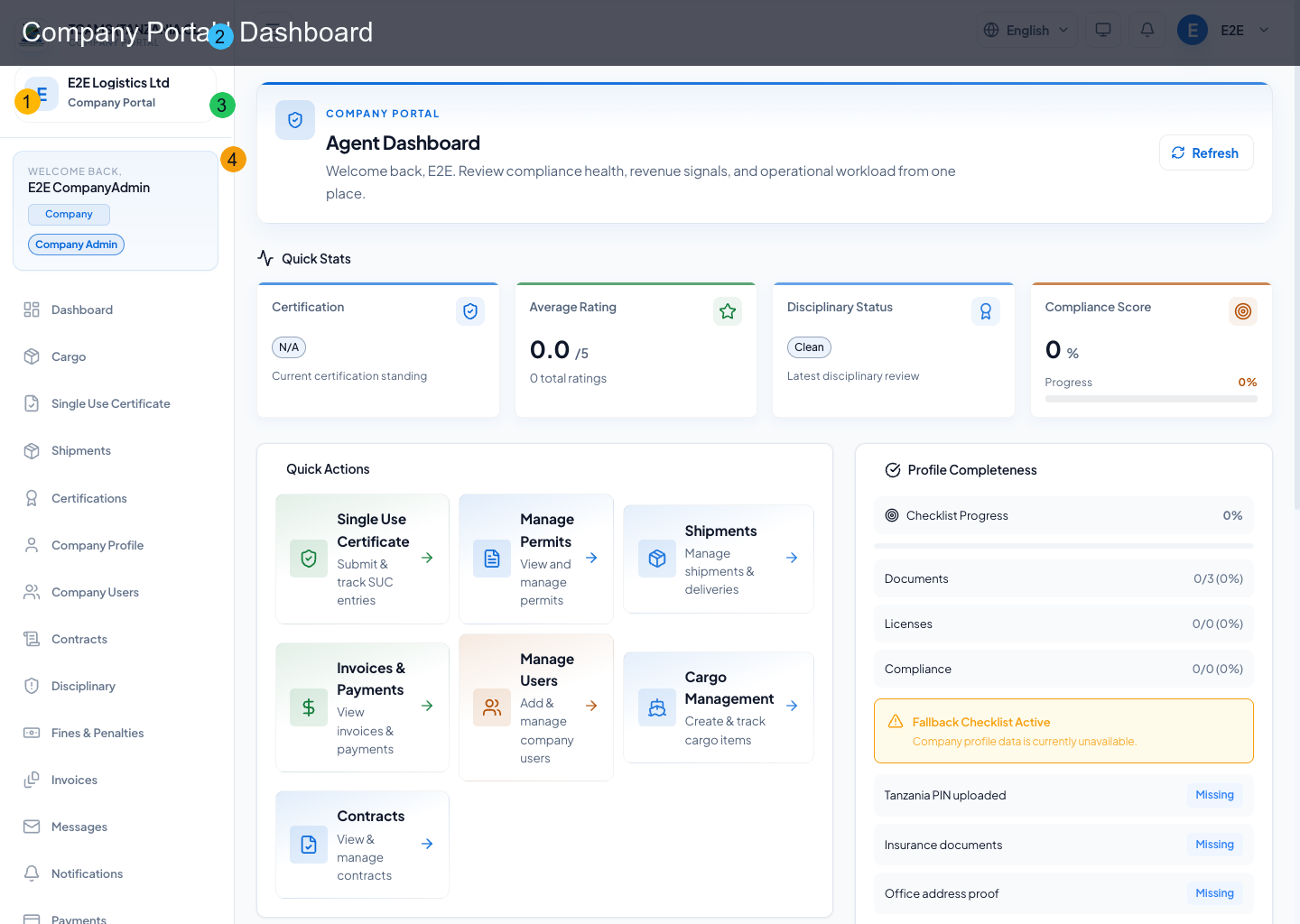
The company dashboard is the operations control surface for daily execution.
Sidebar Structure
Navigation is role-aware and access-mode aware.
Common primary modules:
- dashboard
- TANCIS declarations
- declaration invoices
- certifications
- profile
- users (admin)
- contracts
- invoices / payments (finance-enabled roles)
- messages
Open alerts from the notifications list and confirm the target record before acting. Real-time delivery can place a notification in the header before a list has been refreshed; use the declaration or invoice detail page as the authoritative state. Compare declaration, invoice, and transaction identifiers before taking action.
Start-of-Shift Procedure
- Confirm that the company name and your role badge are correct.
- Review notifications and open any declaration, payment, or message marked urgent.
- Check declarations requiring classification, invoice, or delivery review.
- Review expiring certifications and compliance scorecard warnings.
- For finance users, compare unpaid or overdue invoices with recent payment notifications.
- For administrators, review pending user and customer access actions.
- Record or hand over unresolved exceptions before ending the shift.
Use filters to reduce a queue, then clear them before concluding that no records exist. Counts on summary cards may cover a different time range or status set from the current table.
Role-Aware Navigation
The portal hides modules that are irrelevant or unauthorized for the signed-in role. COMPANY_ADMIN typically manages people and broad company settings; COMPANY_FINANCE handles permitted invoice and payment work; COMPANY_AUDITOR receives read-oriented reporting access; disciplinary roles handle the relevant case and fine views. Tenant policy can further narrow a route or action.
If a user can see a navigation item but receives Forbidden, capture the route and intended action and ask an administrator to verify both static role and current policy. Do not share an administrator account as a workaround. - notifications - support - training - reports/compliance (role-permitted)
Header Controls
Header includes:
- language switch
- notifications bell
- account/profile menu
- theme/system controls
Notification-Aware Operation
The layout establishes real-time notification subscriptions. Alerts can route users directly to target modules such as:
- TANCIS declarations
- declaration invoices
- payments
- messages
Support Acting Mode (Association Admin)
When association admins enter company support mode, the UI shows a support-mode banner and switches module visibility to scoped company actions while preserving auditability.
The company should grant support consent only for a defined purpose and duration. While the banner is visible, verify the target company before any action. End support mode when troubleshooting is complete and review the resulting audit activity if the intervention changed data.