Customer Support And Billing Guide
Use this guide for support tickets, invoice review, and payment tracking.
1. Create And Manage Support Tickets
- Open
Support. - Click
Submit a TicketorNew Ticket. - Add subject, issue details, and attachments.
- Submit and monitor updates from
View my tickets.
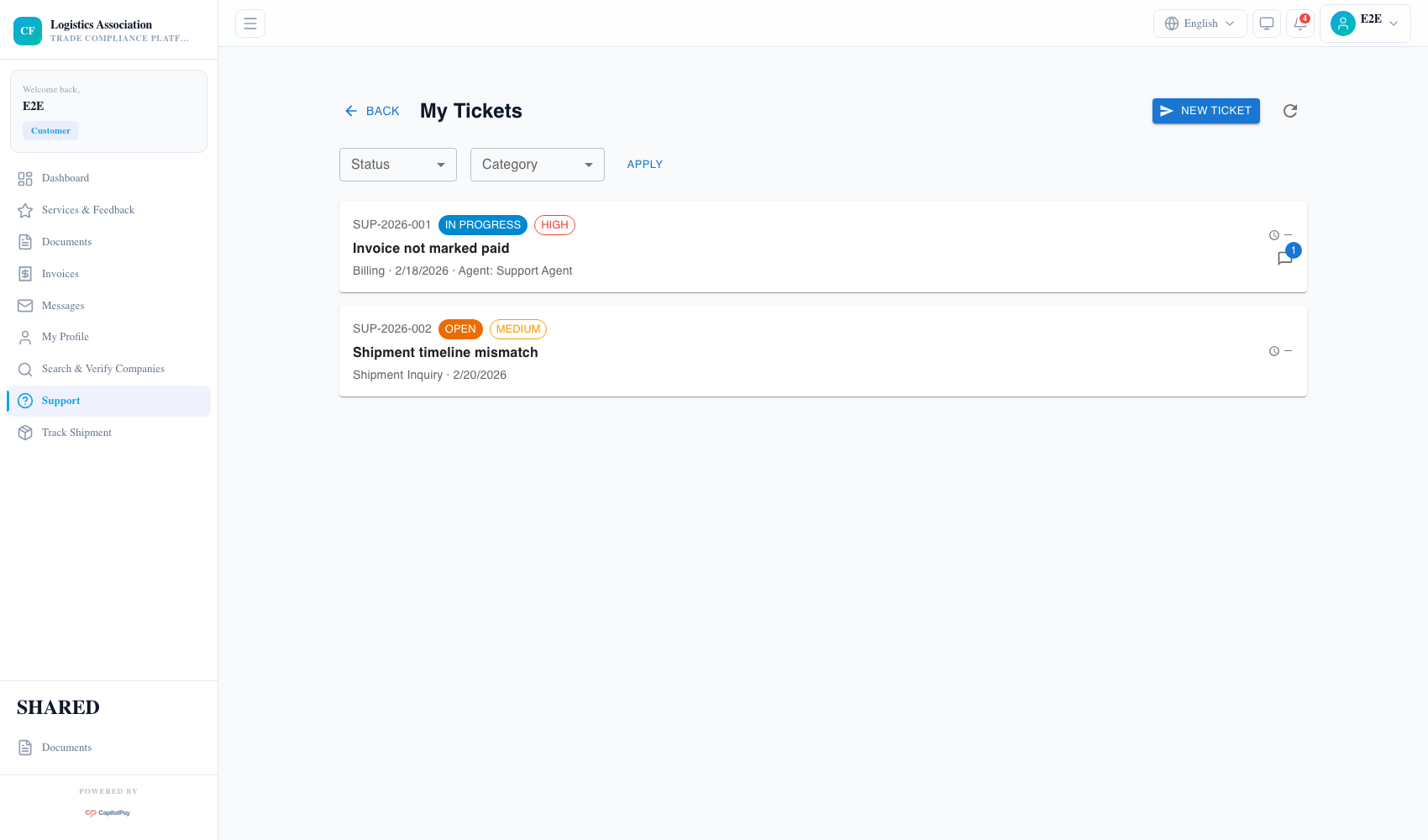
Step Checkpoint - Use as reference: The screenshot above (when provided) should match the state after completing these steps. - Expected result: ticket appears in your list and moves through workflow statuses. - If different: Refresh once, then use the troubleshooting guidance in this guide.
2. Review Customer Invoices
- Open
Invoices. - Use search and status filters (
UNPAID,OVERDUE,PAID). - Open an invoice row to review line items and payment status.
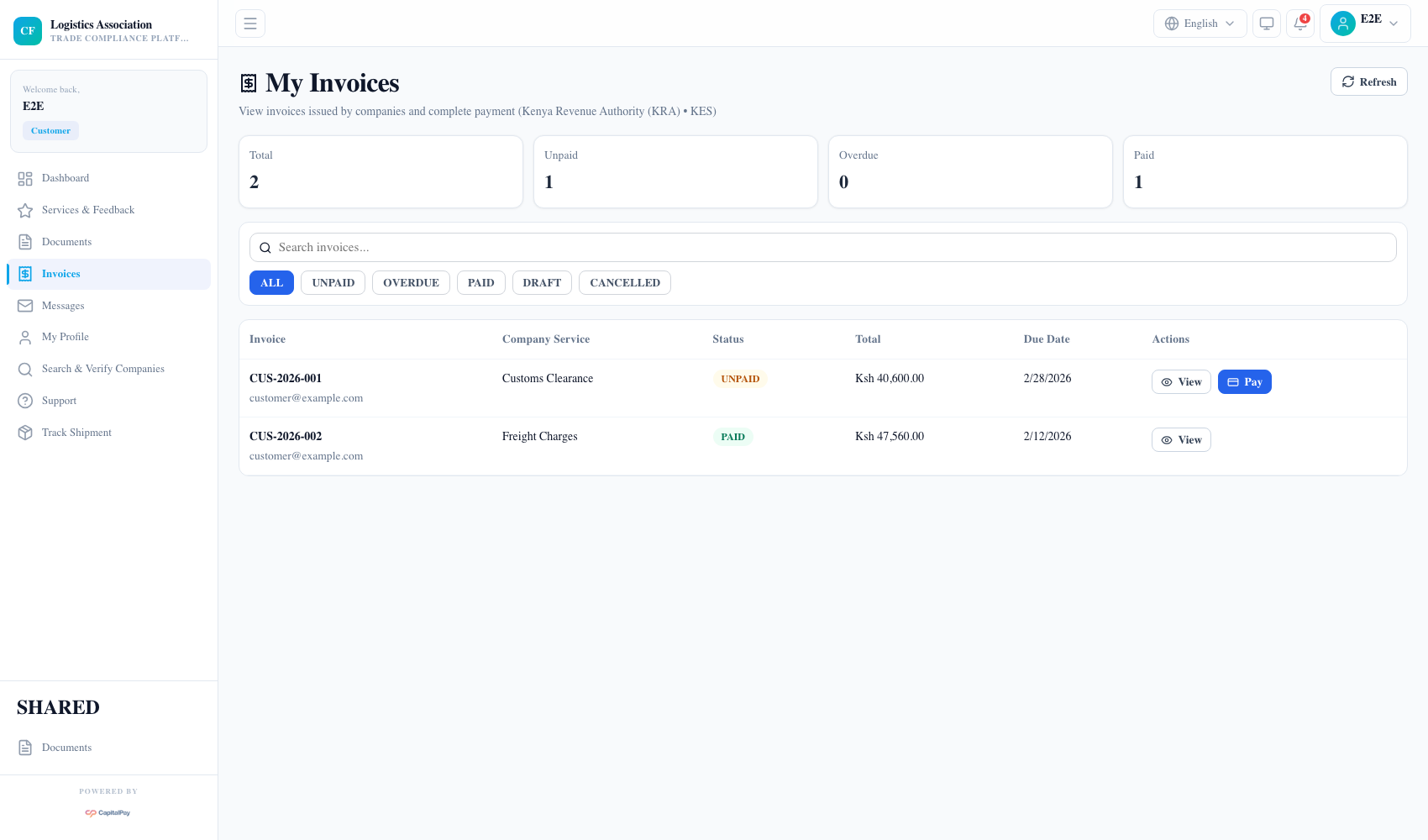
Step Checkpoint - Use as reference: The screenshot above (when provided) should match the state after completing these steps. - Expected result: invoice totals and statuses align with account activity. - If different: Refresh once, then use the troubleshooting guidance in this guide.
3. Make Invoice Payments
- Open an unpaid invoice.
- Confirm amount, due date, and payment method.
- Complete payment and wait for status update to
PAID. - Download receipt when available.
Step Checkpoint - Use as reference: The screenshot above (when provided) should match the state after completing these steps. - Expected result: paid invoices move out of unpaid queue and appear in payment history. - If different: Refresh once, then use the troubleshooting guidance in this guide.
4. Common Billing Issues
Network Erroron invoice list:- refresh and retry;
- if repeated, create a support ticket with screenshot and timestamp.
- Payment submitted but invoice still unpaid:
- wait for reconciliation window, then refresh;
- if still pending, raise a ticket with invoice ID.
Quick Reference
- Support:
Support - Billing:
Invoices - Escalation:
Support Center