Association Governance Guide
Use this guide for association-level oversight of registrations, companies, and users.
1. Start From Association Dashboard
- Open your association portal URL and sign in.
- Confirm counters for companies, users, shipments, and cargos.
- Use quick actions to jump to key workflows.
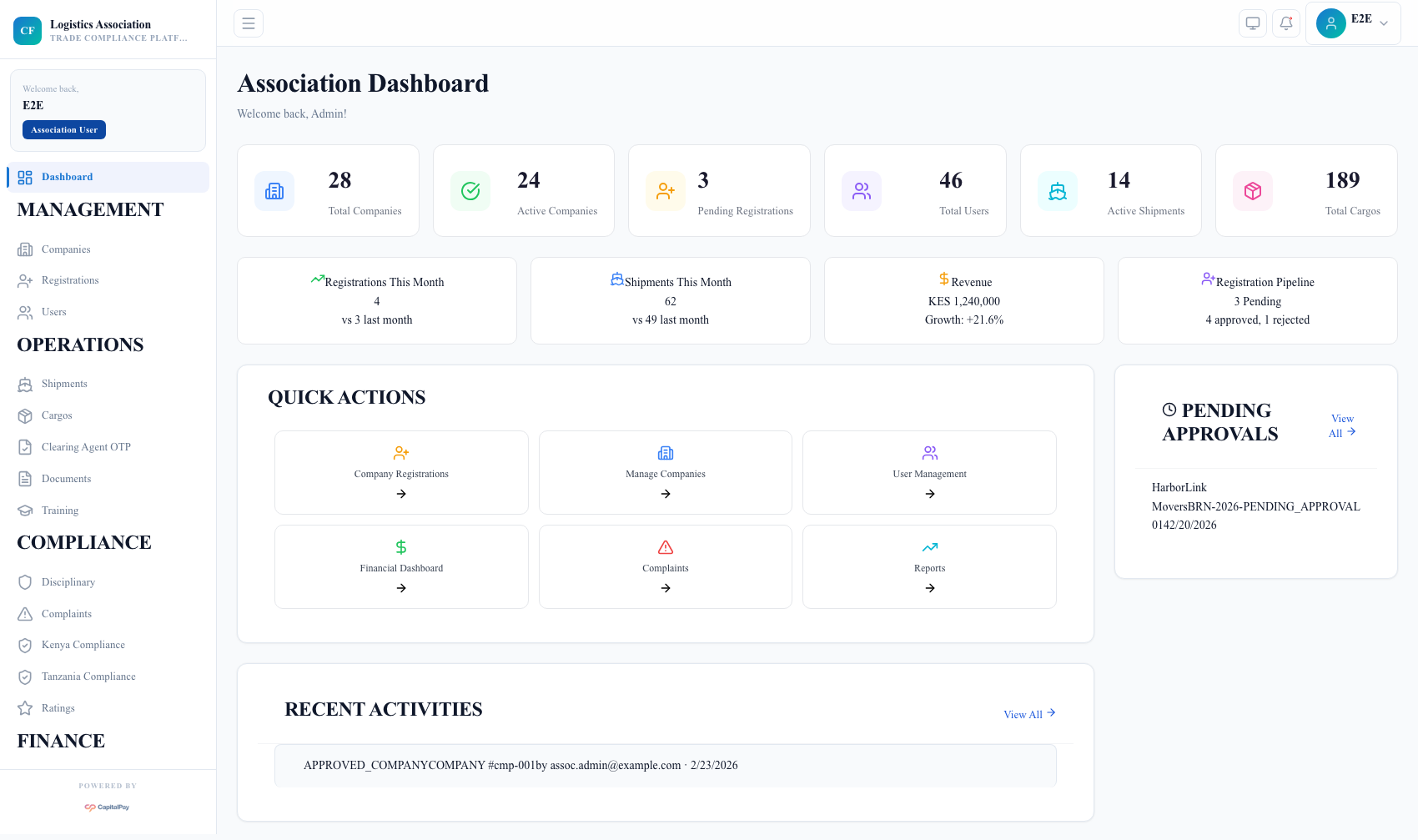
Step Checkpoint - Use as reference: The screenshot above (when provided) should match the state after completing these steps. - Expected result: governance metrics and pending approvals are visible. - If different: Refresh once, then use the troubleshooting guidance in this guide.
2. Process Company Registrations
- Open
Registrations. - Search/filter pending records.
- Open each registration and review submitted data.
- Approve or reject based on compliance readiness.
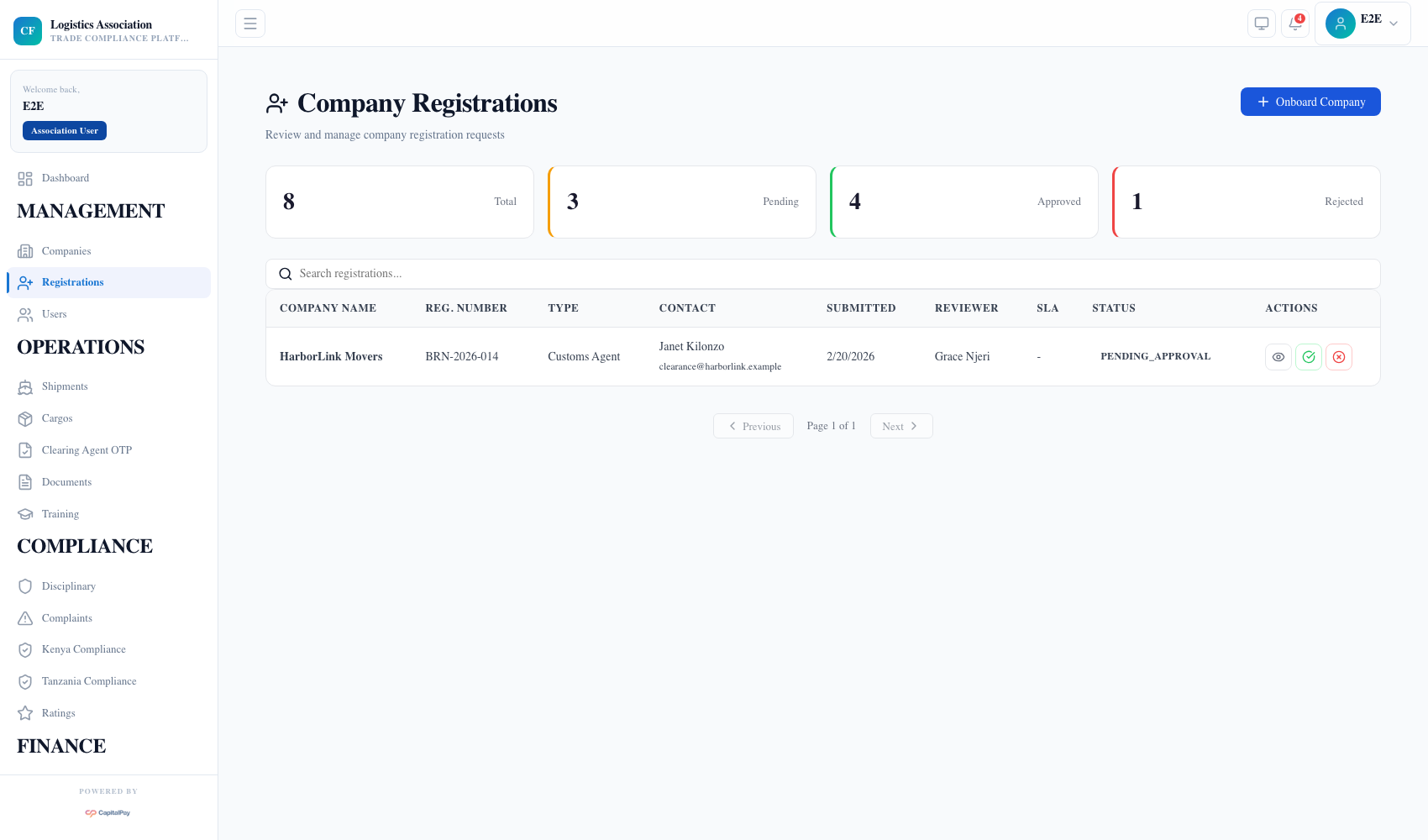
Step Checkpoint - Use as reference: The screenshot above (when provided) should match the state after completing these steps. - Expected result: registration status updates and audit history remain consistent. - If different: Refresh once, then use the troubleshooting guidance in this guide.
3. Manage Company Lifecycle
- Open
Companies. - Search by company name or registration number.
- Review status (
Active,Pending,Suspended,Rejected). - Apply lifecycle actions according to policy.
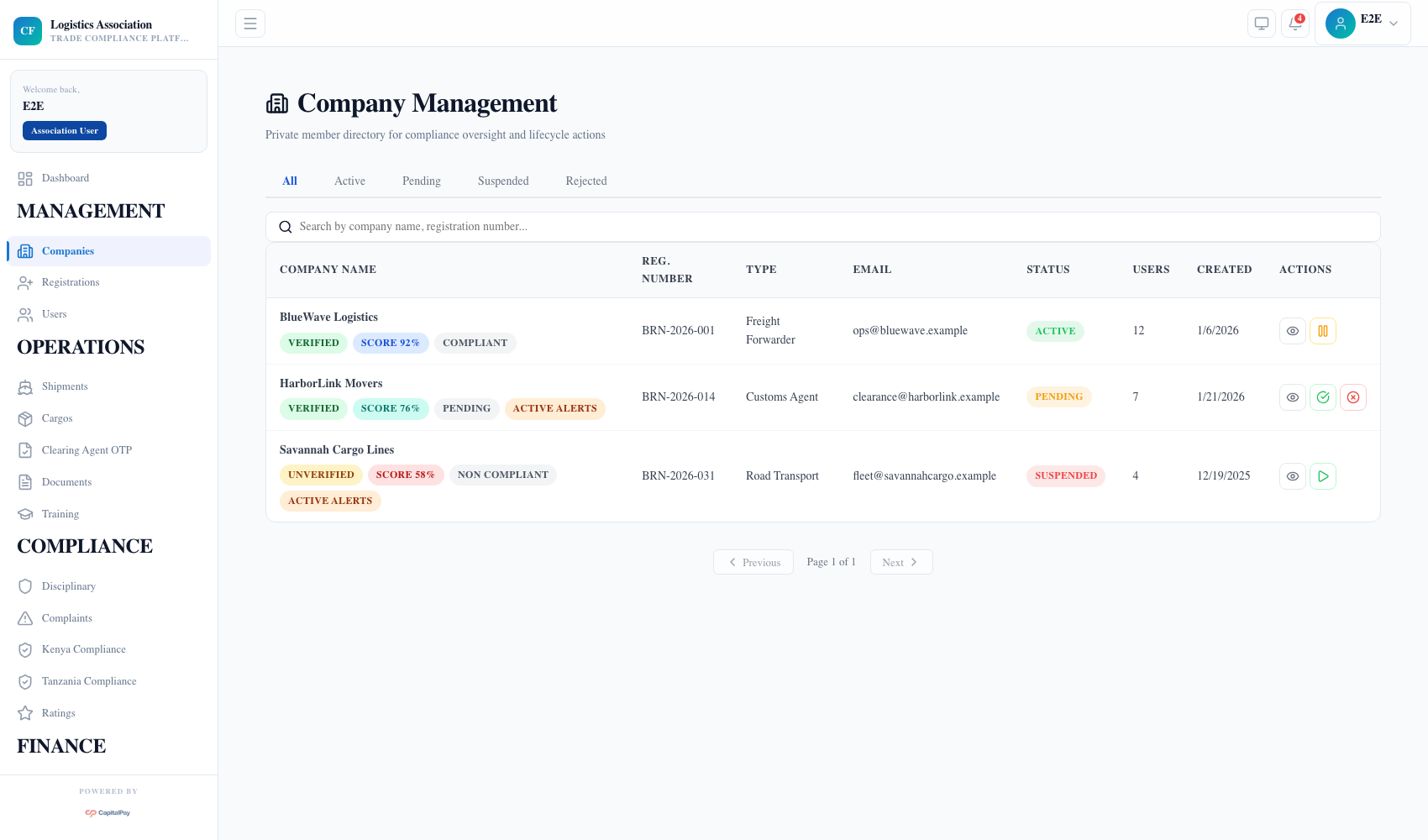
Step Checkpoint - Use as reference: The screenshot above (when provided) should match the state after completing these steps. - Expected result: company state updates are reflected in listing and dashboard metrics. - If different: Refresh once, then use the troubleshooting guidance in this guide.
4. Manage Association Users
- Open
Users. - Click
Add Userfor new staff accounts. - Assign role and monitor status.
- Update role/status as team structure changes.
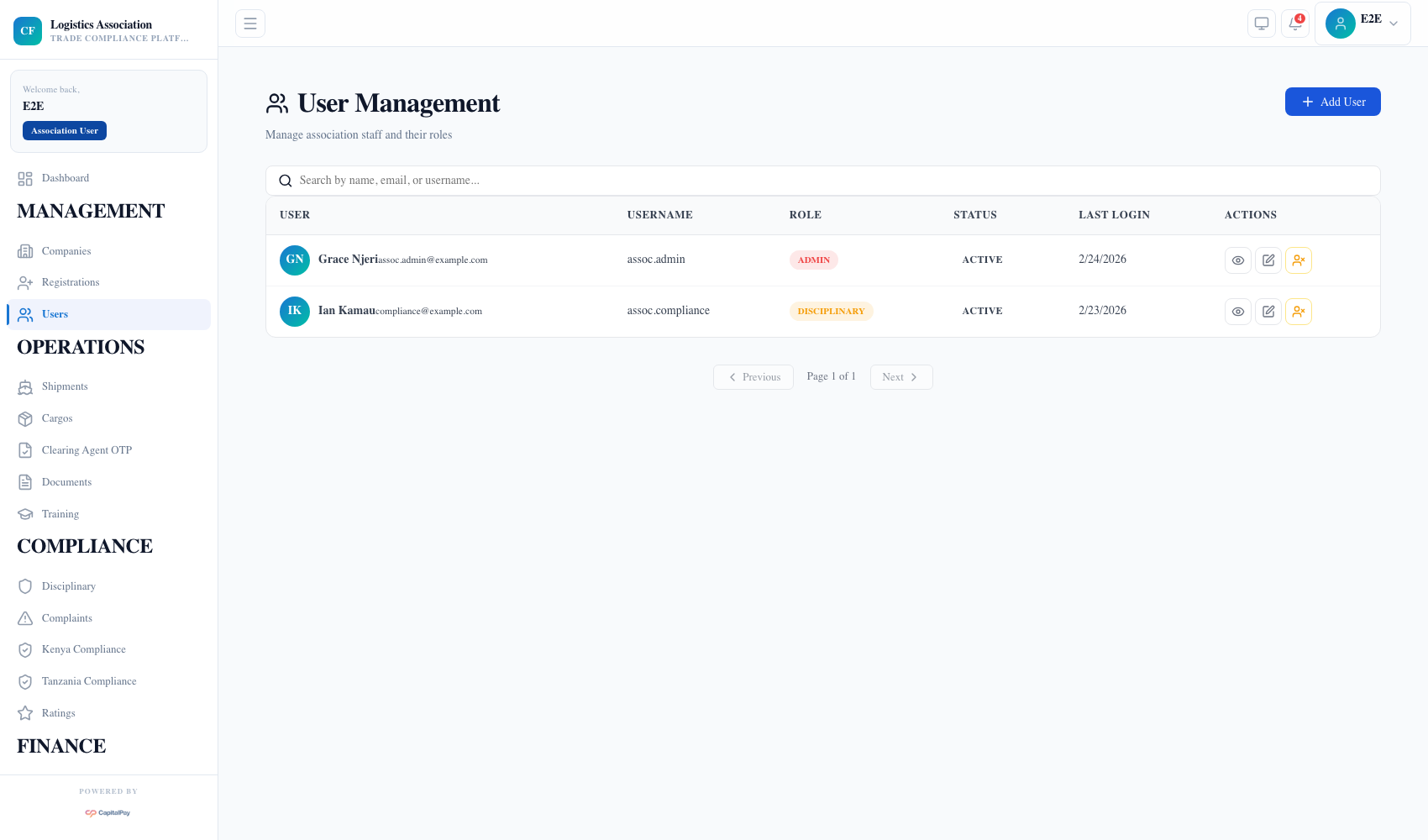
Step Checkpoint - Use as reference: The screenshot above (when provided) should match the state after completing these steps. - Expected result: user roster reflects active association staff and permissions. - If different: Refresh once, then use the troubleshooting guidance in this guide.
5. Troubleshooting
- Empty lists in governance pages:
- expected in newly reset environments;
- confirm sample or production data state before escalation.
- Missing action buttons:
- verify role mapping and association permissions.
Quick Reference
- Governance menus:
Dashboard,Registrations,Companies,Users - Primary action owners: Association Admin and Association Super Admin