Company Finance And Reporting Guide
Use this guide for invoices, payments, reporting, and LMS access.
1. Manage Invoices
- Open
Invoices. - Use
Dashboard,Manage Invoices, andStatisticstabs. - Filter by status and export CSV where needed.
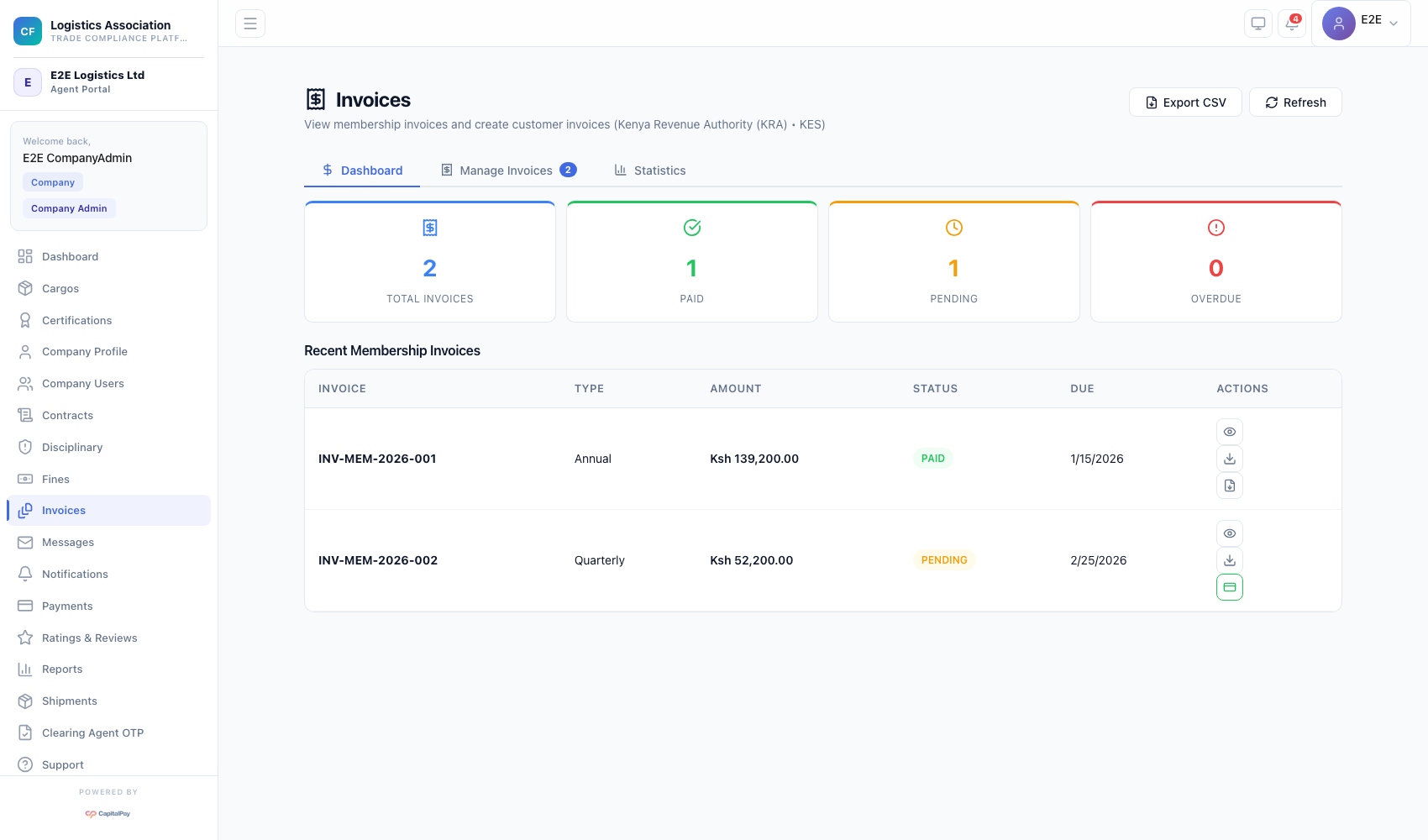
Step Checkpoint - Use as reference: The screenshot above (when provided) should match the state after completing these steps. - Expected result: invoice counters and table rows reflect current billing state. - If different: Refresh once, then use the troubleshooting guidance in this guide.
2. Review Payment Transactions
- Open
Payments. - Review total paid, pending, and monthly totals.
- Search/filter transactions and inspect payment rows.
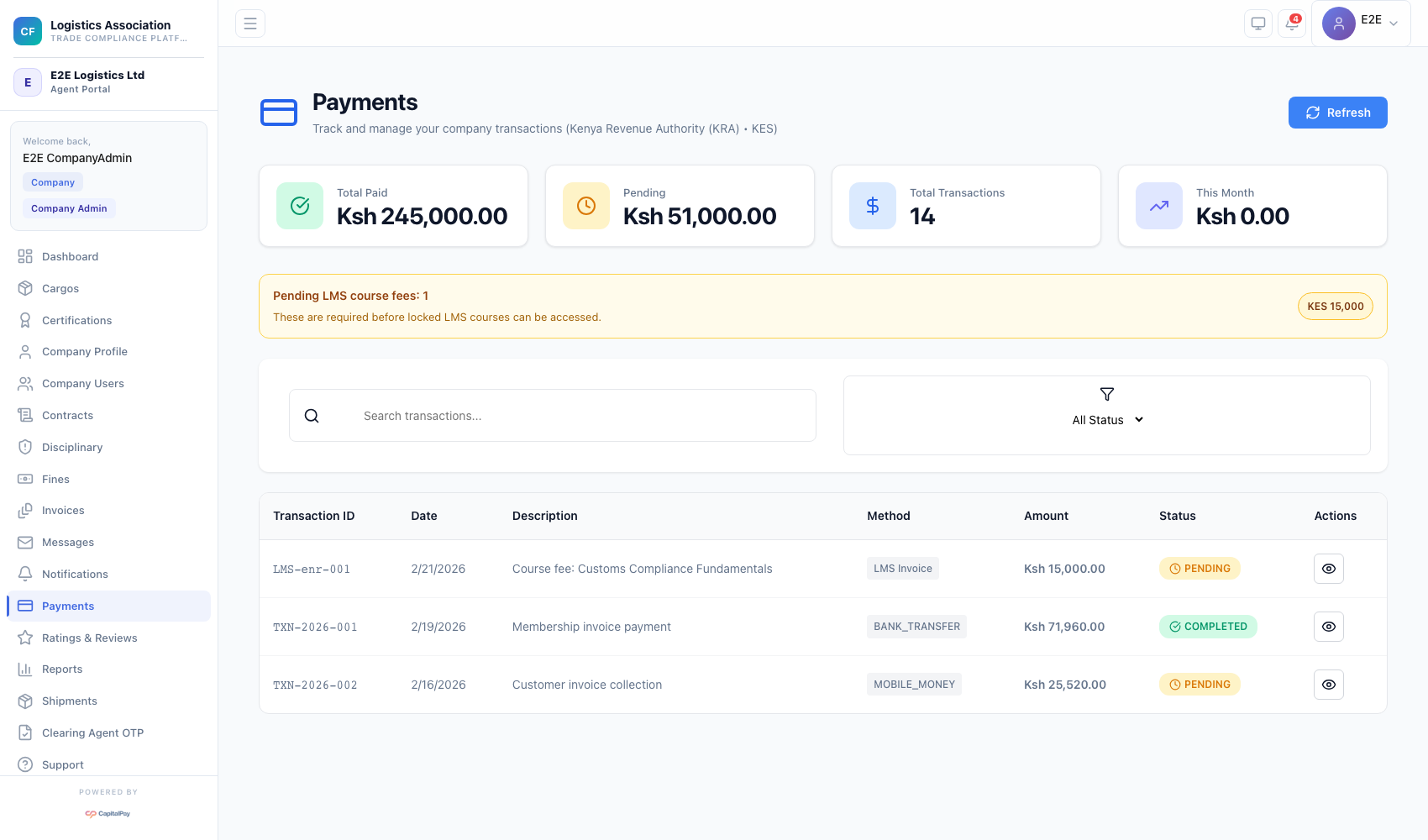
Step Checkpoint - Use as reference: The screenshot above (when provided) should match the state after completing these steps. - Expected result: transaction list is populated and KPI cards refresh correctly. - If different: Refresh once, then use the troubleshooting guidance in this guide.
3. Use Reports And Analytics
- Open
Reports. - Review KPI cards (revenue, compliance score, pending invoices, OTP success).
- Use period filters and report categories (
All Reports,Shipments,Financial,Cargo).
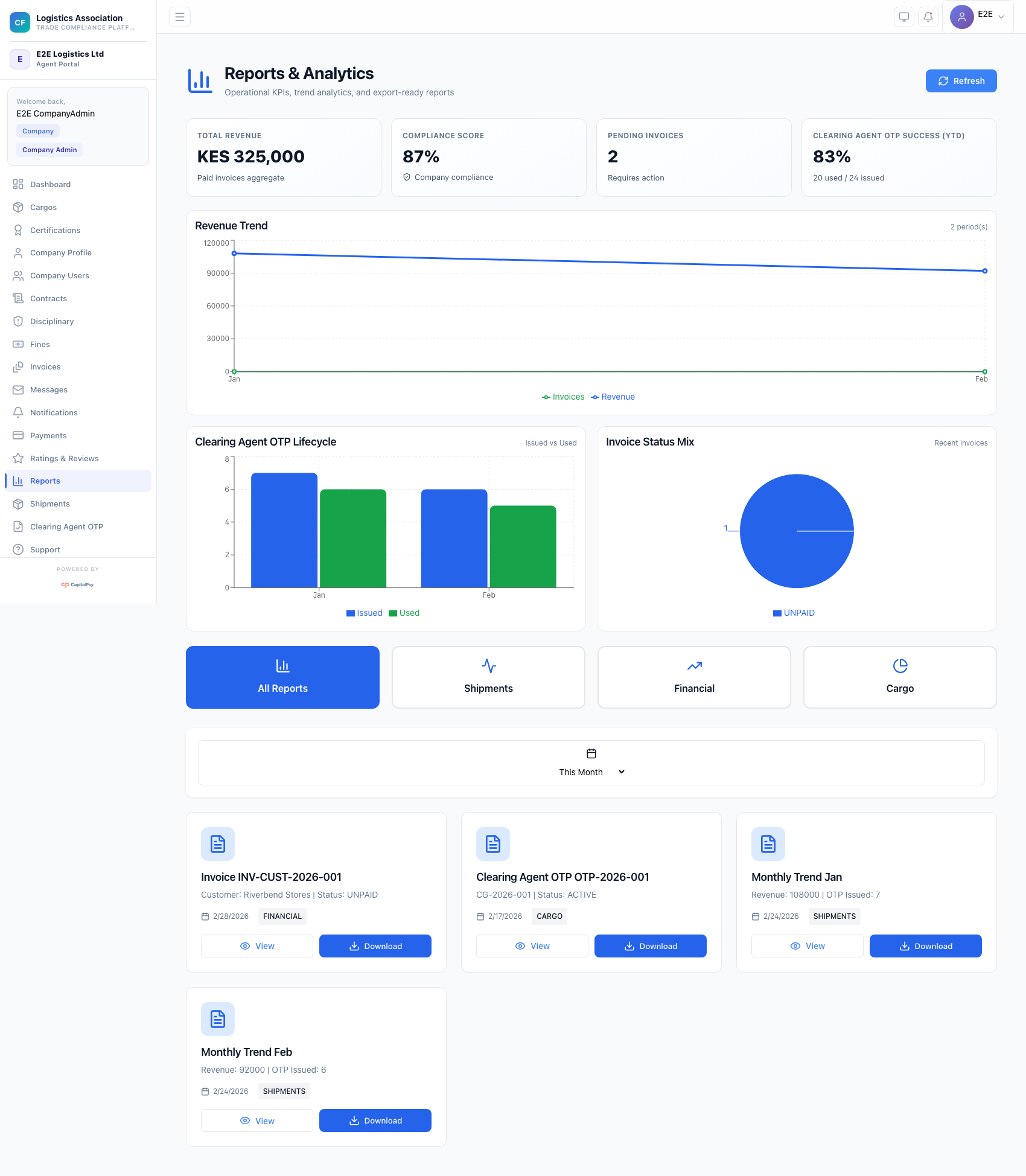
Step Checkpoint - Use as reference: The screenshot above (when provided) should match the state after completing these steps. - Expected result: KPI widgets and report catalog load for selected period. - If different: Refresh once, then use the troubleshooting guidance in this guide.
4. Training/LMS Usage
- Open
Trainingfrom left navigation. - Start assigned courses and track completion.
- Confirm completed learning updates readiness/compliance where enabled.
Step Checkpoint - Use as reference: The screenshot above (when provided) should match the state after completing these steps. - Expected result: enrollment and progress are visible to the user and supervisors. - If different: Refresh once, then use the troubleshooting guidance in this guide.
5. Troubleshooting
- Empty report charts:
- expected when there is no activity for selected period.
- No payment records:
- expected before first successful transaction.
- Export issues:
- retry with a narrower date range.
Quick Reference
- Finance menus:
Invoices,Payments,Reports - Export formats: CSV/PDF/Excel (per report type)