Company Onboarding Guide
Use this guide when setting up a company account and preparing users for operations.
1. Sign In And Confirm Dashboard Access
- Open your company portal URL.
- Sign in with a company admin account.
- Confirm quick actions and profile completeness panel are visible.
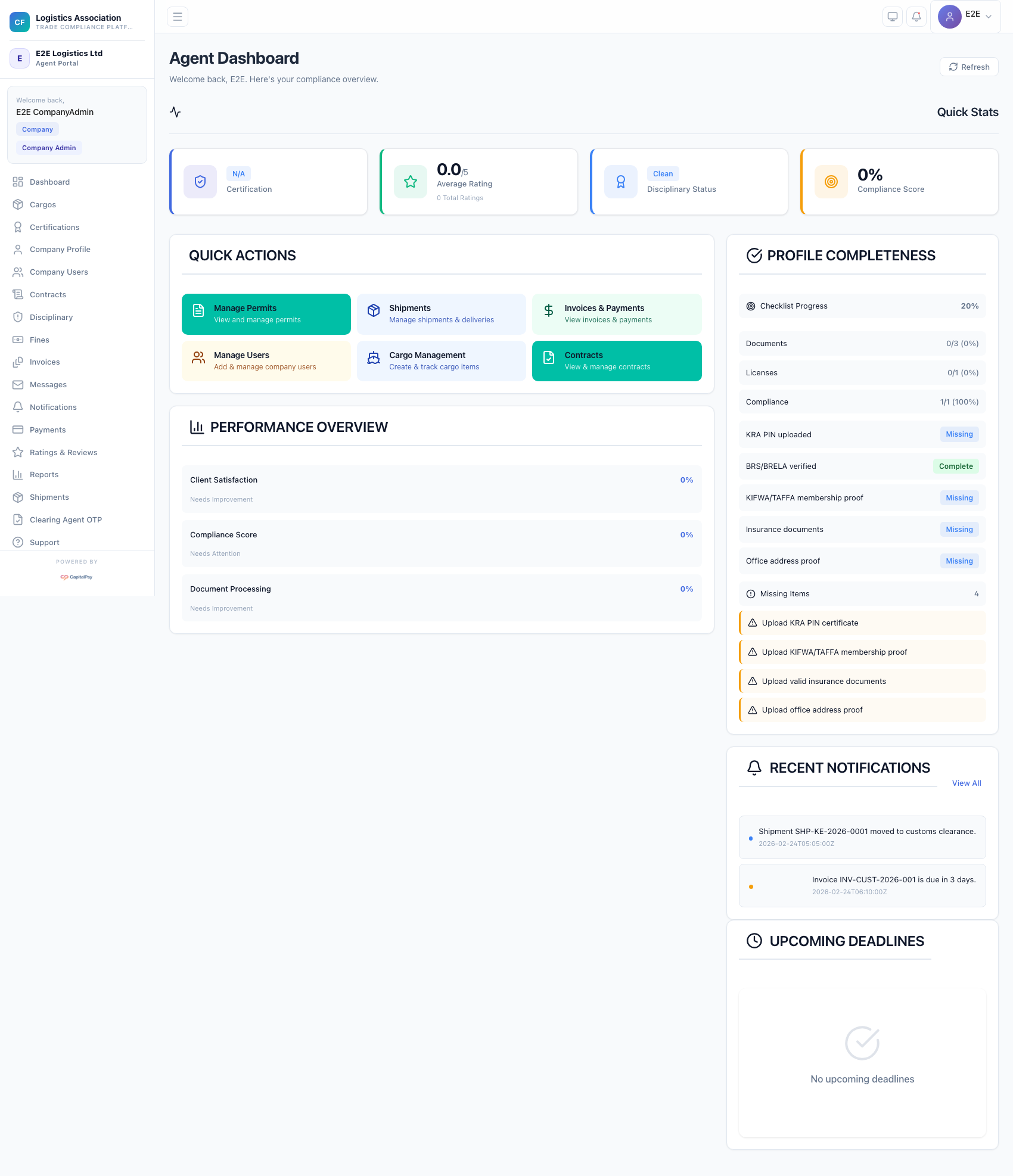
Step Checkpoint - Use as reference: The screenshot above (when provided) should match the state after completing these steps. - Expected result: dashboard loads with role badge, KPI cards, and operational shortcuts. - If different: Refresh once, then use the troubleshooting guidance in this guide.
2. Complete Company Profile
- Open
Company Profile. - Fill personal/contact/company details.
- Save updates and verify values persist after refresh.
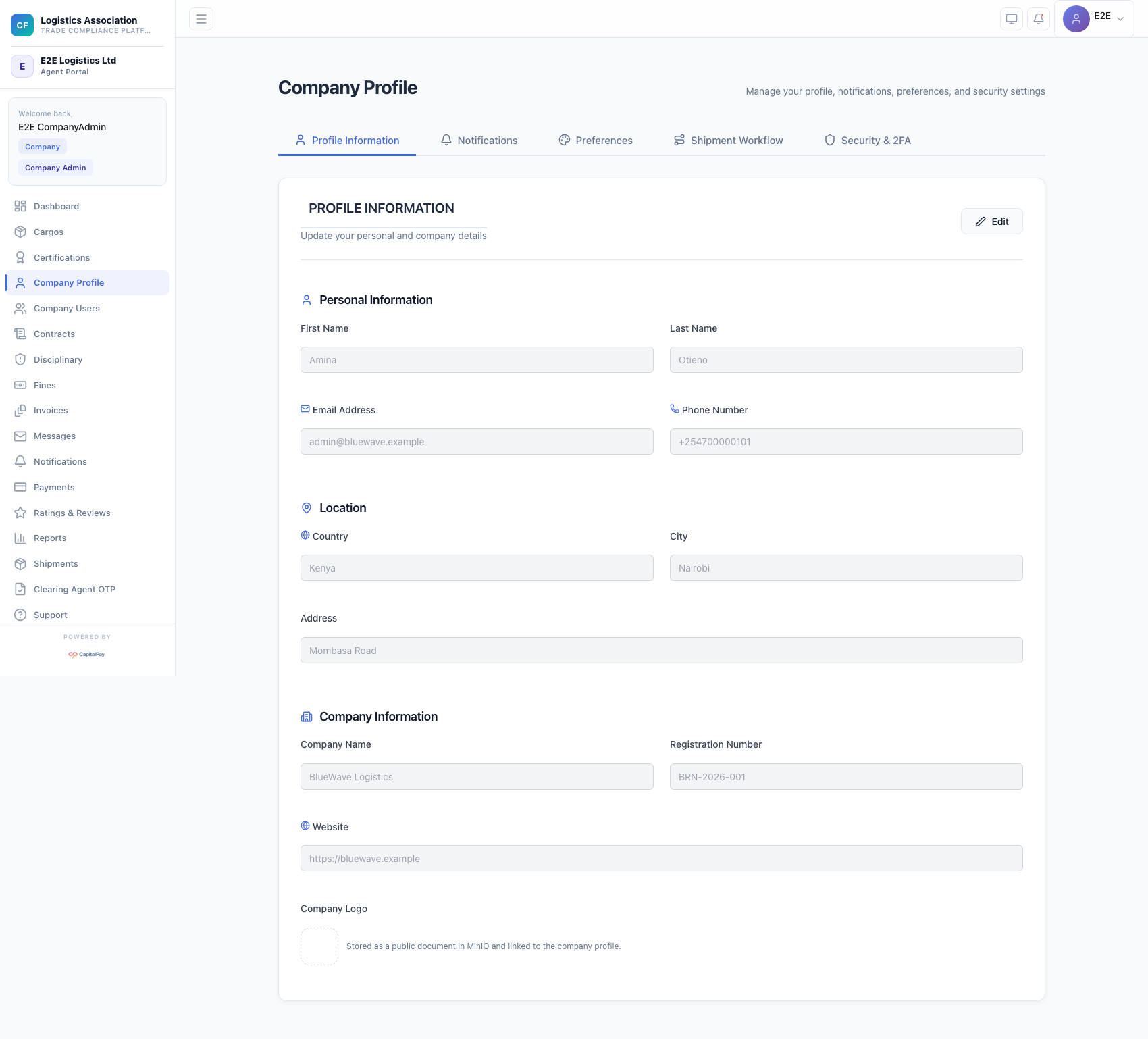
Step Checkpoint - Use as reference: The screenshot above (when provided) should match the state after completing these steps. - Expected result: profile reflects latest legal and operational company details. - If different: Refresh once, then use the troubleshooting guidance in this guide.
3. Configure Company Users
- Open
Company Users. - Add users with role assignments.
- Activate/suspend users as needed.
- Confirm access level by role after first login.
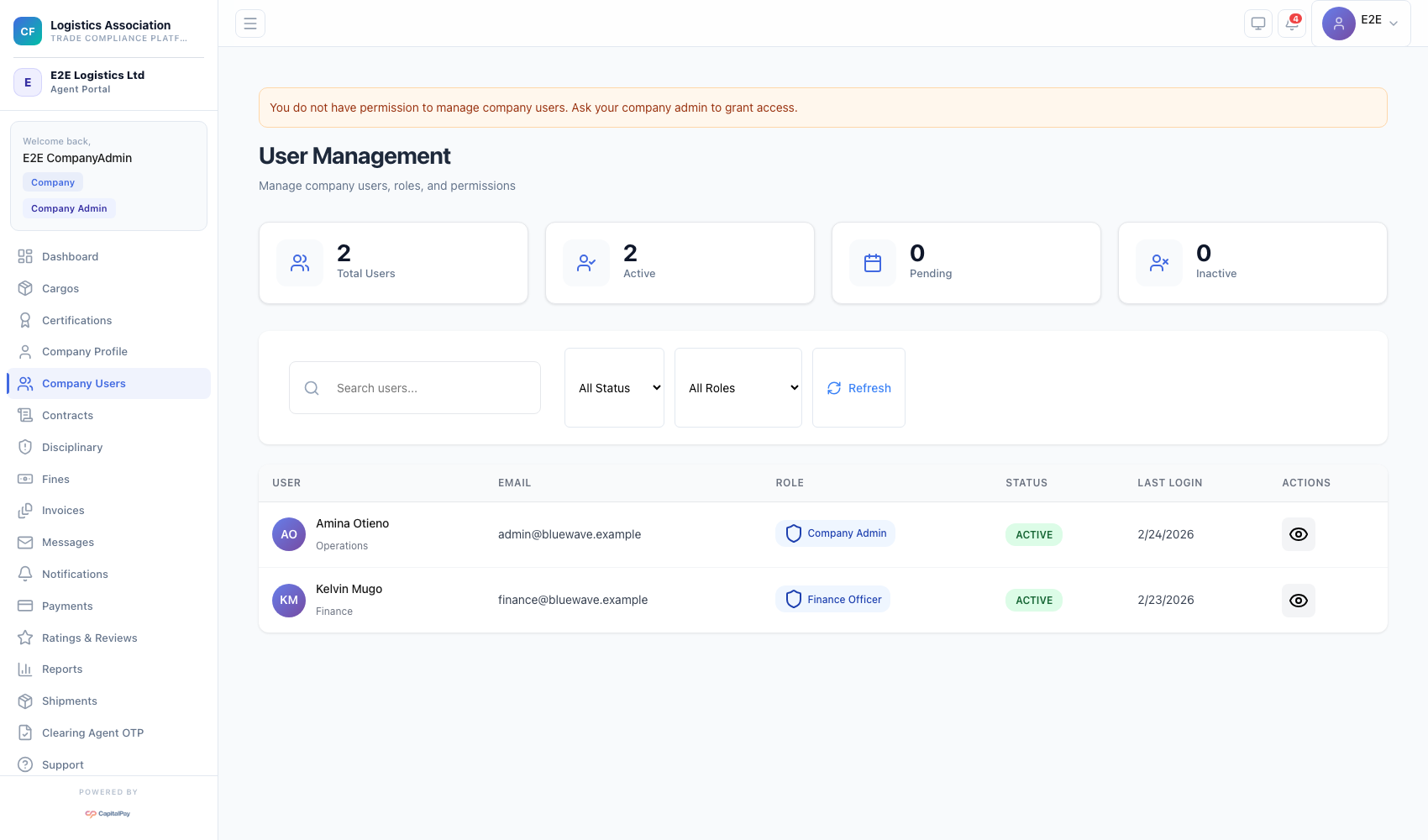
Step Checkpoint - Use as reference: The screenshot above (when provided) should match the state after completing these steps. - Expected result: users appear in list with expected status and role scope. - If different: Refresh once, then use the troubleshooting guidance in this guide.
4. Set Up Contracts
- Open
Contracts. - Click
New Contractto create a draft. - Complete parties, terms, and validity dates.
- Move contract through draft/active lifecycle.
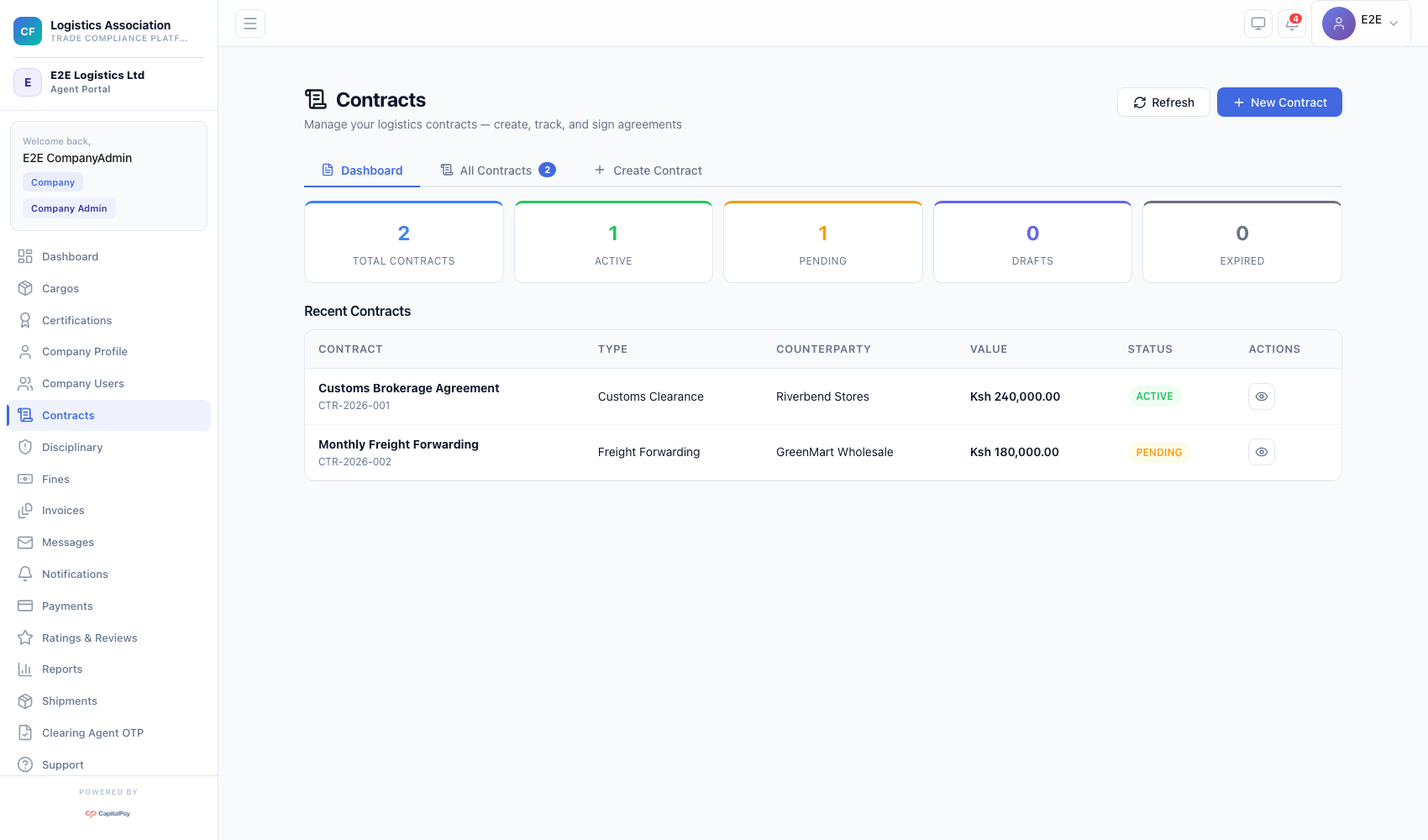
Step Checkpoint - Use as reference: The screenshot above (when provided) should match the state after completing these steps. - Expected result: contract appears in counters and contract list. - If different: Refresh once, then use the troubleshooting guidance in this guide.
5. Troubleshooting
Failed to load profile:- refresh and retry;
- if repeated, verify backend health and role scope.
401on user management:- account likely lacks required admin permission;
- request role update from a company super-admin.
Quick Reference
- Setup menus:
Company Profile,Company Users,Contracts