Customer Journey Guide
Use this guide to navigate the customer portal from sign-in to shipment tracking and feedback.
1. Open Dashboard
- Open your customer portal URL and sign in.
- Confirm dashboard cards and quick actions are visible.
- Use quick actions to jump to search, tracking, rating, or complaint flows.
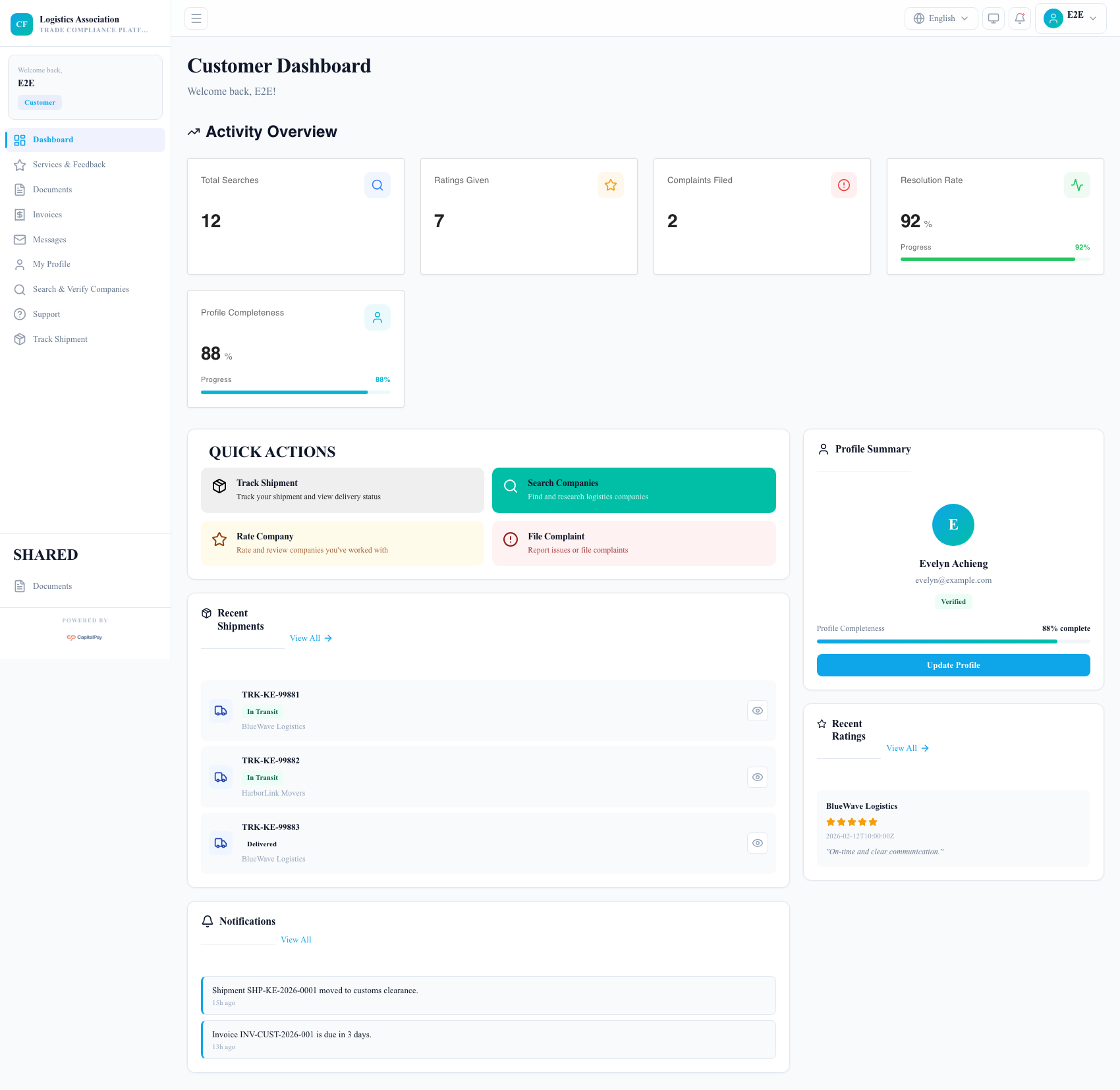
Step Checkpoint - Use as reference: The screenshot above (when provided) should match the state after completing these steps. - Expected result: dashboard shows activity counters, recent shipments, and notifications. - If different: Refresh once, then use the troubleshooting guidance in this guide.
2. Search And Verify Companies
- Open
Search & Verify Companiesfrom the left menu. - Enter company name, registration number, or location.
- Apply filters for service type, status, and rating.
- Open a company result to review profile and compliance badges.
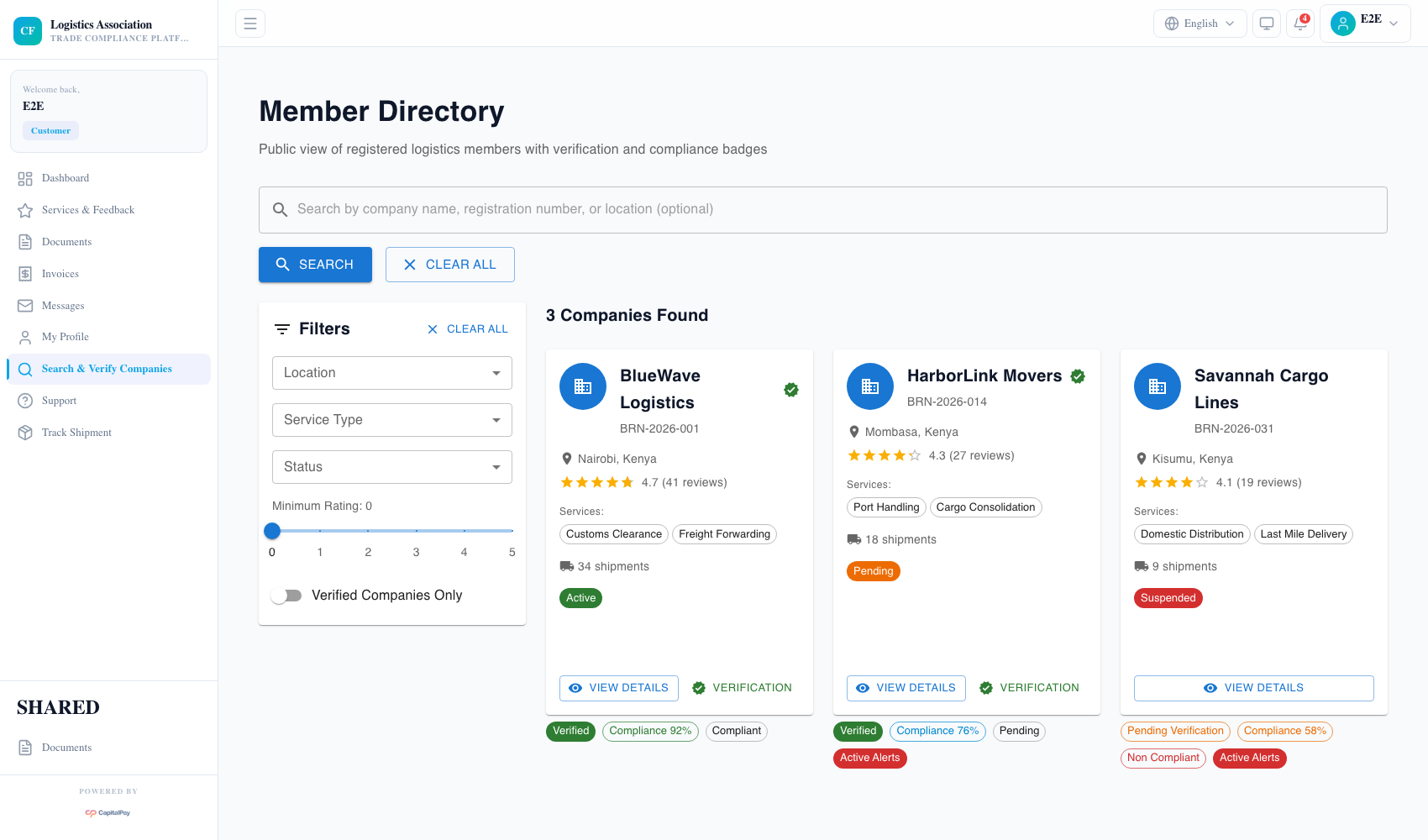
Step Checkpoint - Use as reference: The screenshot above (when provided) should match the state after completing these steps. - Expected result: company cards and filters refresh with matching results. - If different: Refresh once, then use the troubleshooting guidance in this guide.
3. Track Shipment Status
- Open
Track Shipment. - Enter shipment ID or tracking number.
- Click
Trackto load shipment timeline and latest status.
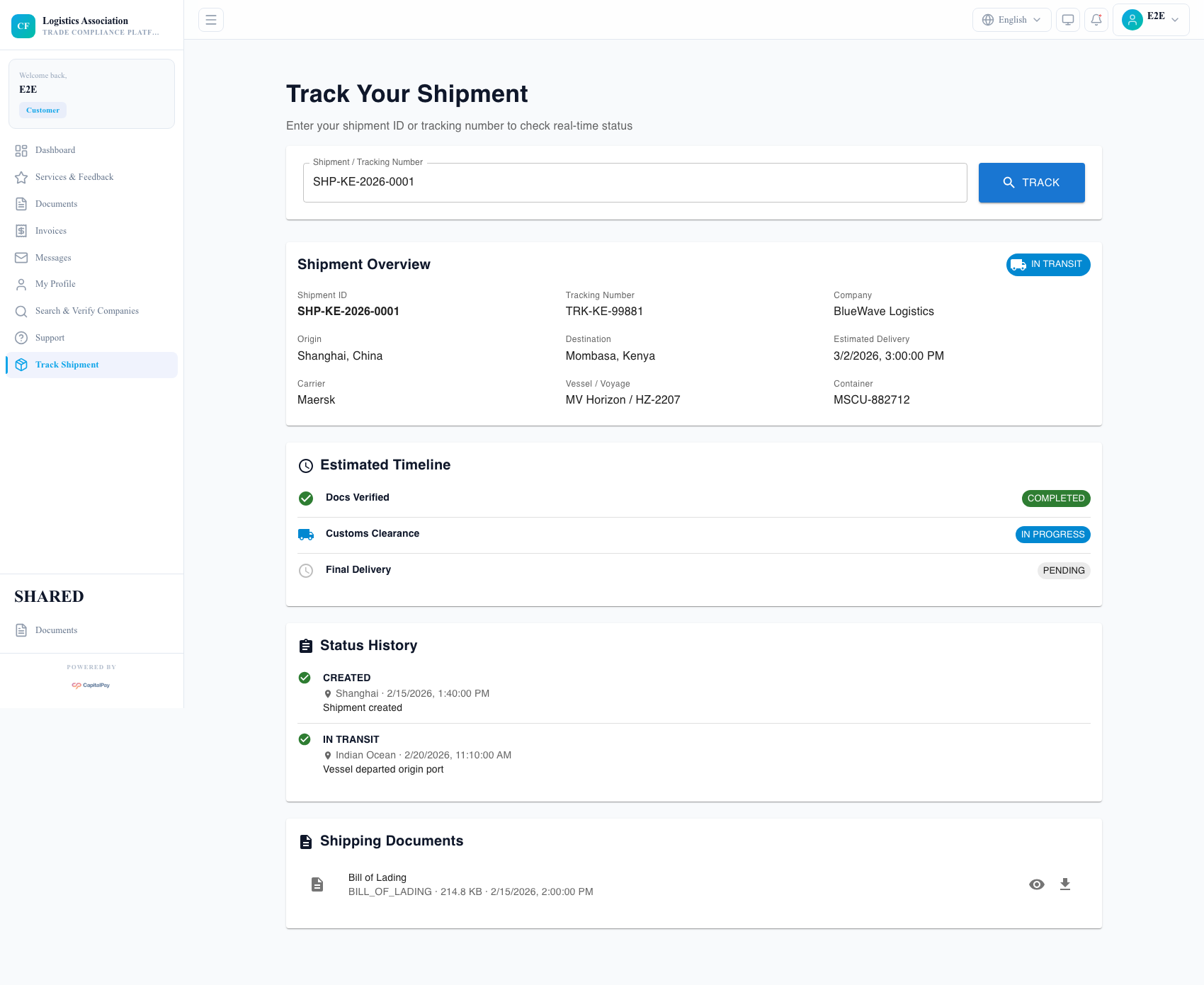
Step Checkpoint - Use as reference: The screenshot above (when provided) should match the state after completing these steps. - Expected result: milestone timeline and shipment detail cards are displayed. - If different: Refresh once, then use the troubleshooting guidance in this guide.
4. Rate Services And Submit Complaints
- Open
Services & Feedback. - Use
Rate Companyafter receiving a service. - Use
File Complaintwhen there is a service issue. - Track complaint updates from the same section.
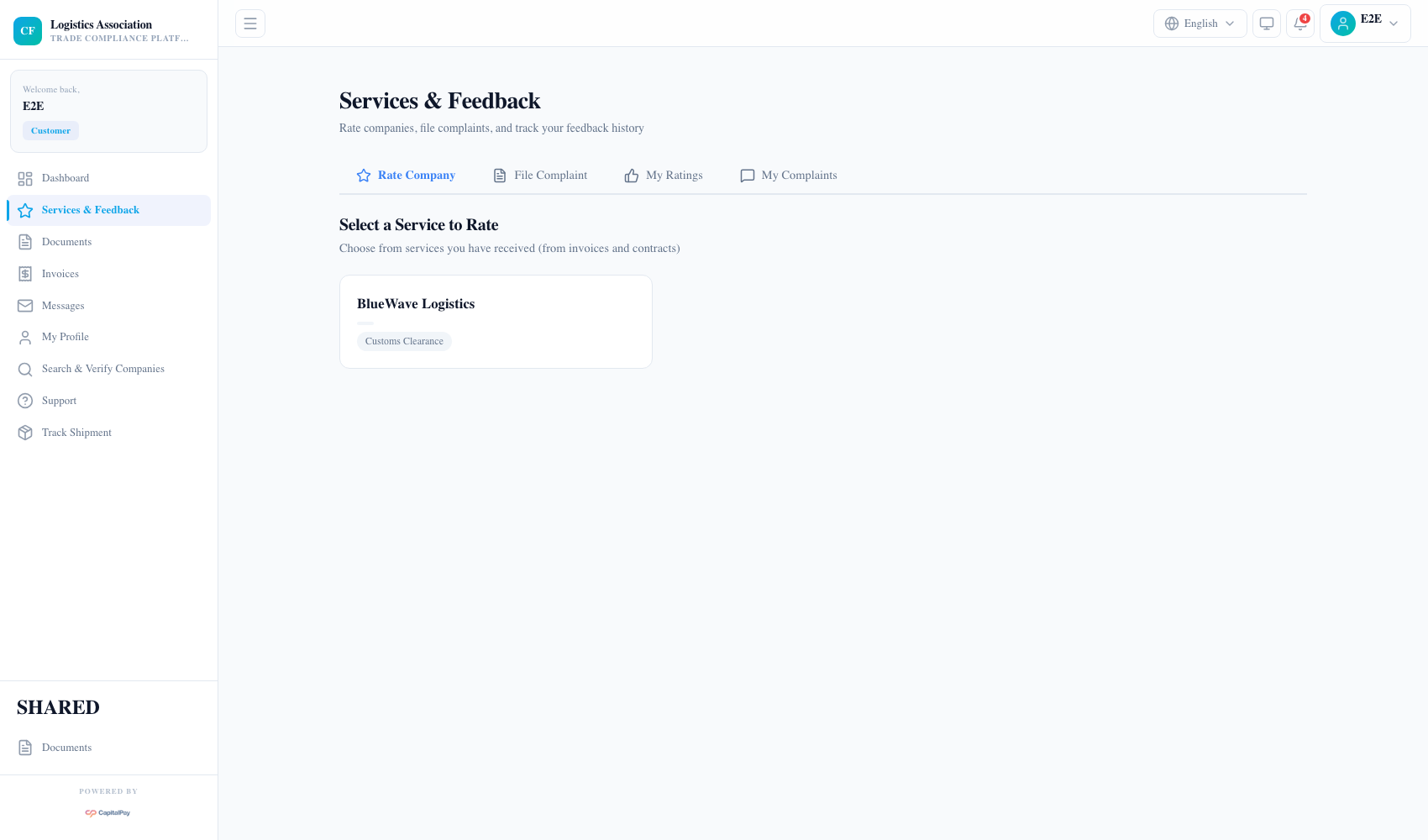
Step Checkpoint - Use as reference: The screenshot above (when provided) should match the state after completing these steps. - Expected result: ratings and complaints are saved in your account history. - If different: Refresh once, then use the troubleshooting guidance in this guide.
5. Troubleshooting
- If
Network Errorappears on search or invoices: - refresh once, then sign out and sign in again;
- if still failing, open
Supportand include page name and timestamp. - If tracking returns no result:
- confirm shipment ID format with the company that created the shipment.
- If rating is unavailable:
- rating appears only after eligible service or invoice history exists.
Quick Reference
- Search menu:
Search & Verify Companies - Tracking menu:
Track Shipment - Support menu:
Support